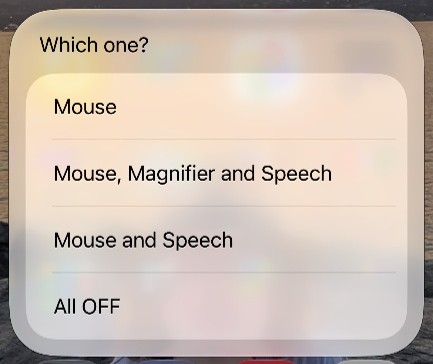
This manual describes how you can easily set up the necessary adjustments for KOBA Connect. An icon on the home screen gives a drop-down list where you can choose to:
- Use a mouse
- One mouse, magnification and voice use
- Use a mouse and voice
- Turn everything off
Click on the KOBA Connect link
- Go to the KOBA Vision support website with the device to be connected.
- Click on the link.
Add the shortcut to your iPhone or iPad
- Clicking on the link will open a notification to add KOBA Connect to shortcuts. (if necessary, install shortcuts from the App Store)
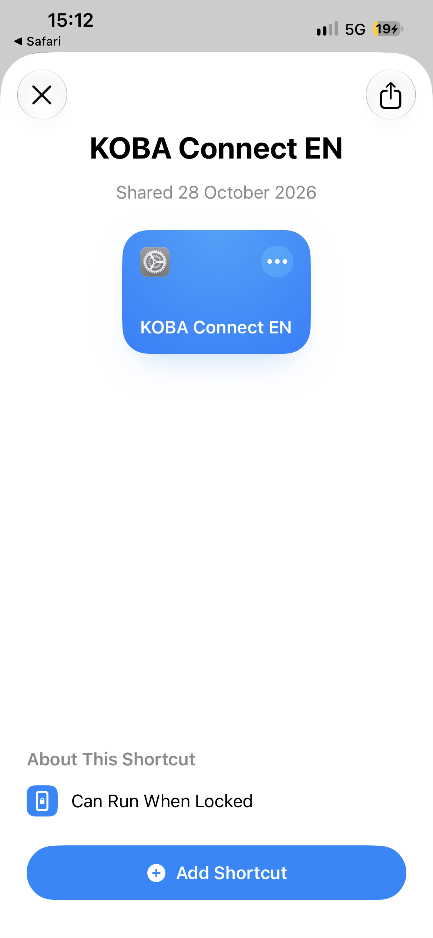
- Click on: Add Shortcut.
Put the command on the home screen
- The shortcut appears in the Shortcuts app. Click KOBA Connect.
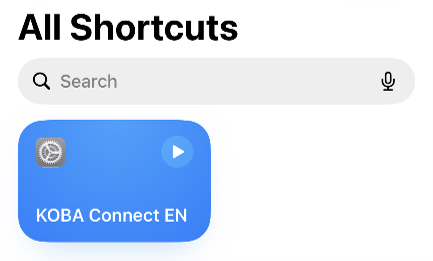
- A detail now opens up.
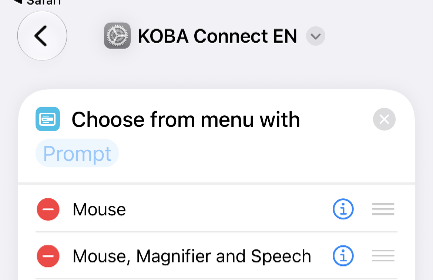
- Click the down arrow next to KOBA Connect and choose Add to Home Screen.
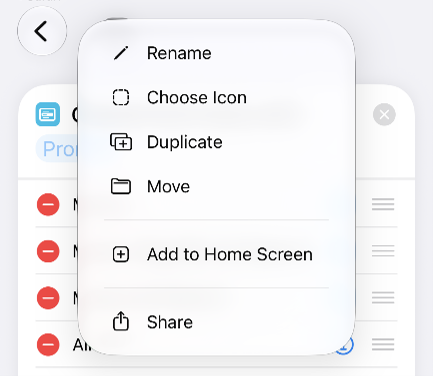
- Click on the checkmark to confirm
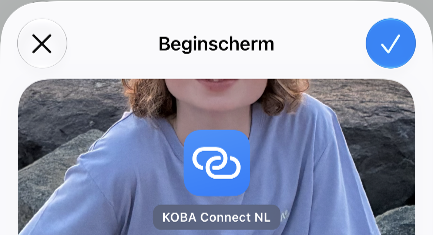
- Done.
Use
The home screen now shows the KOBA Connect app. Choose which setting you want to use from list.